How to Use Olaeet Connect Service
The Connect Service allows you to transfer the purchase amount to a virtual account provided by the shopping mall when card payment is not possible while purchasing products from a Korean shopping mall from abroad.
1. Access Olaeet Service: Go to the Olaeet service page at app.olaeet.com.
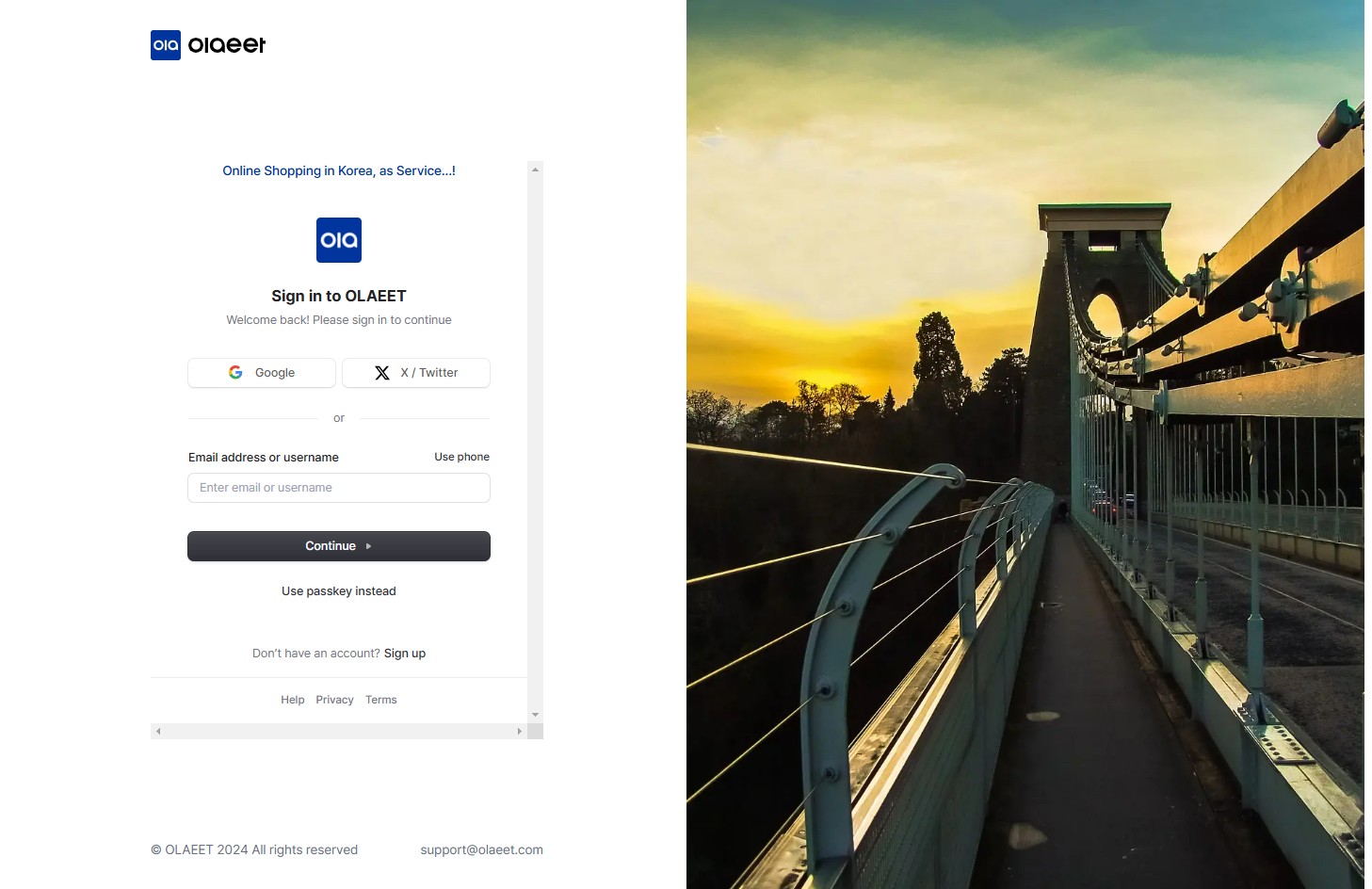
2. Sign Up: If you are not registered yet, sign up on the Olaeet service page. You can register using a Google account or an X (formerly Twitter) account. If you don’t have these accounts, you can sign up through the “Sign up” option.
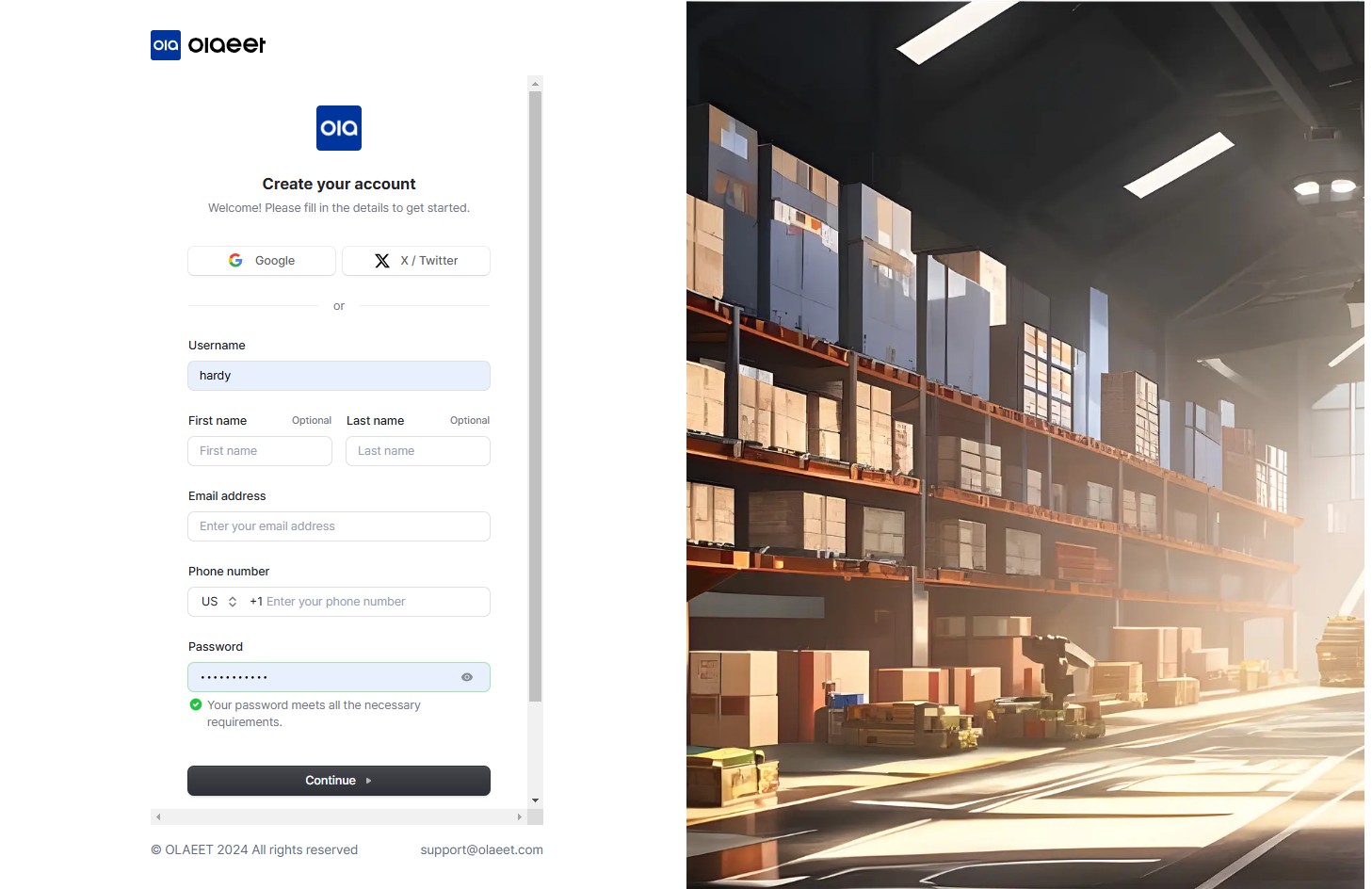
User Information Required:
Name
Email address
Mobile phone number
Password
Complete Verification: Finish the email and phone verification to complete the sign-up process.
3. Click “Connect” from the left menu.
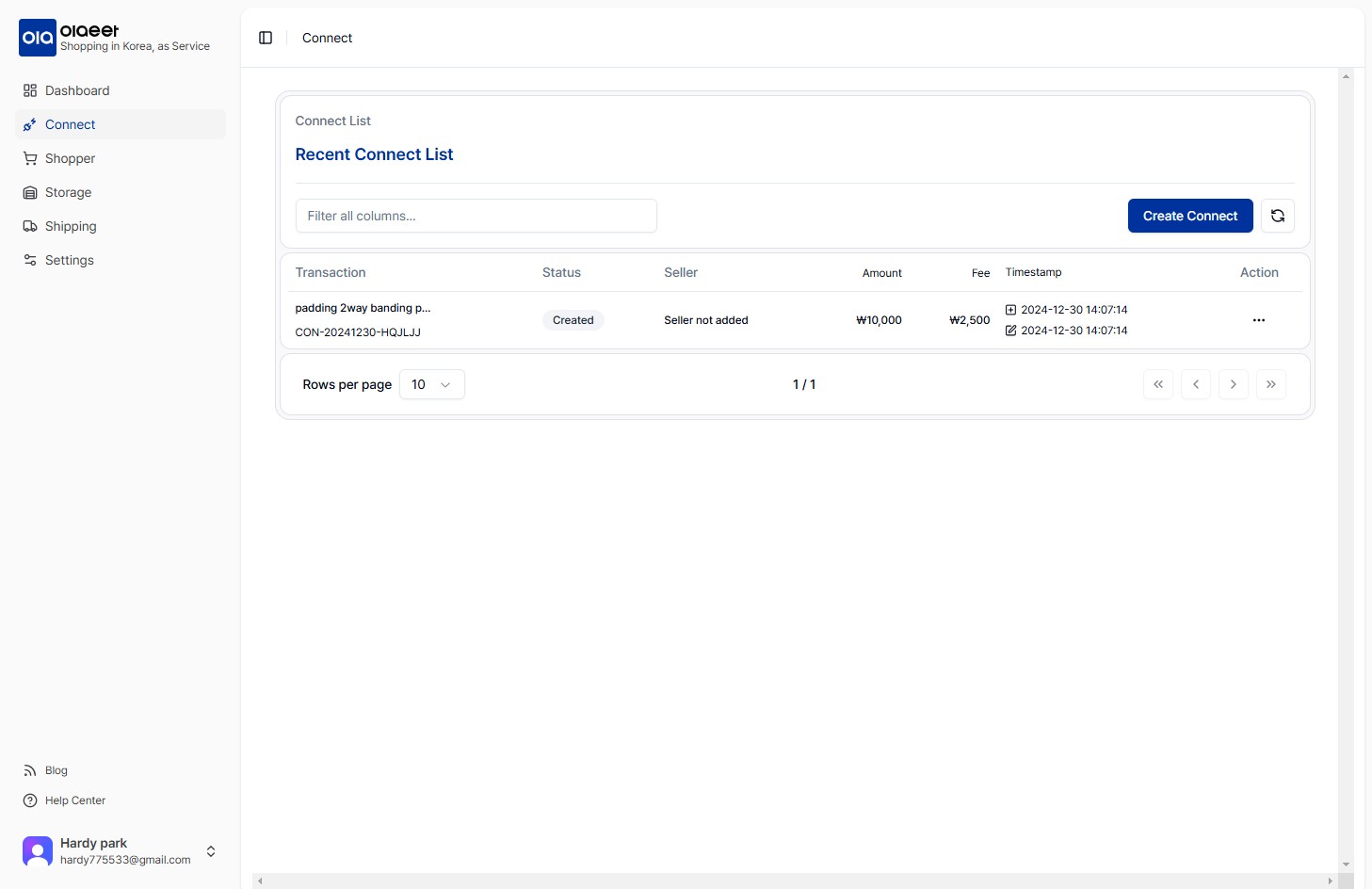
Click the “Create Connect” button on the right.
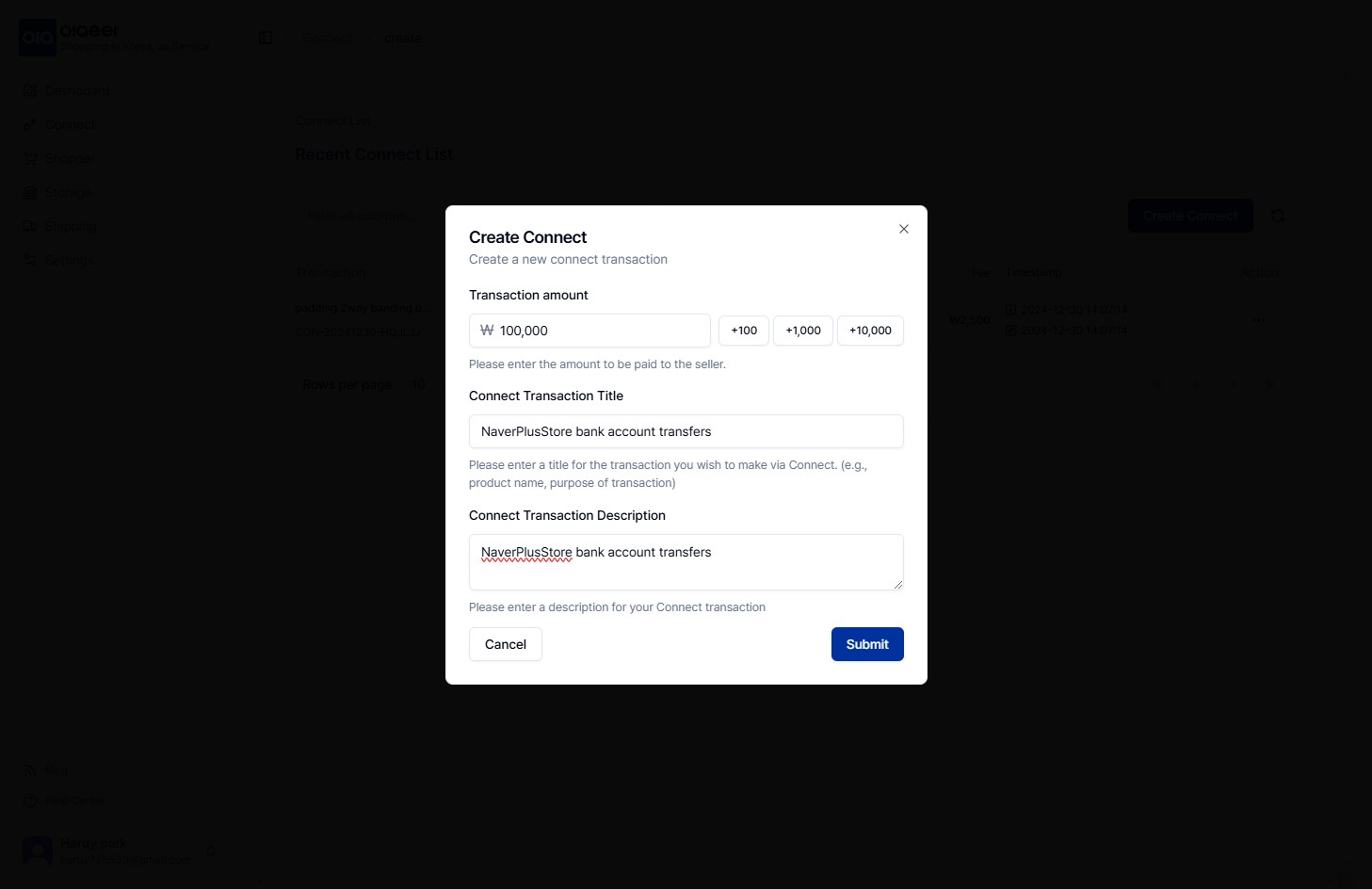
When the Create Connect popup appears, enter the amount you wish to deposit in the “Transaction amount” field.
Enter the title and description related to the deposit in the “Connect Transaction Title” and “Connect Transaction Description” fields.
Click the “Submit” button at the bottom right to complete the creation of the new Connect.
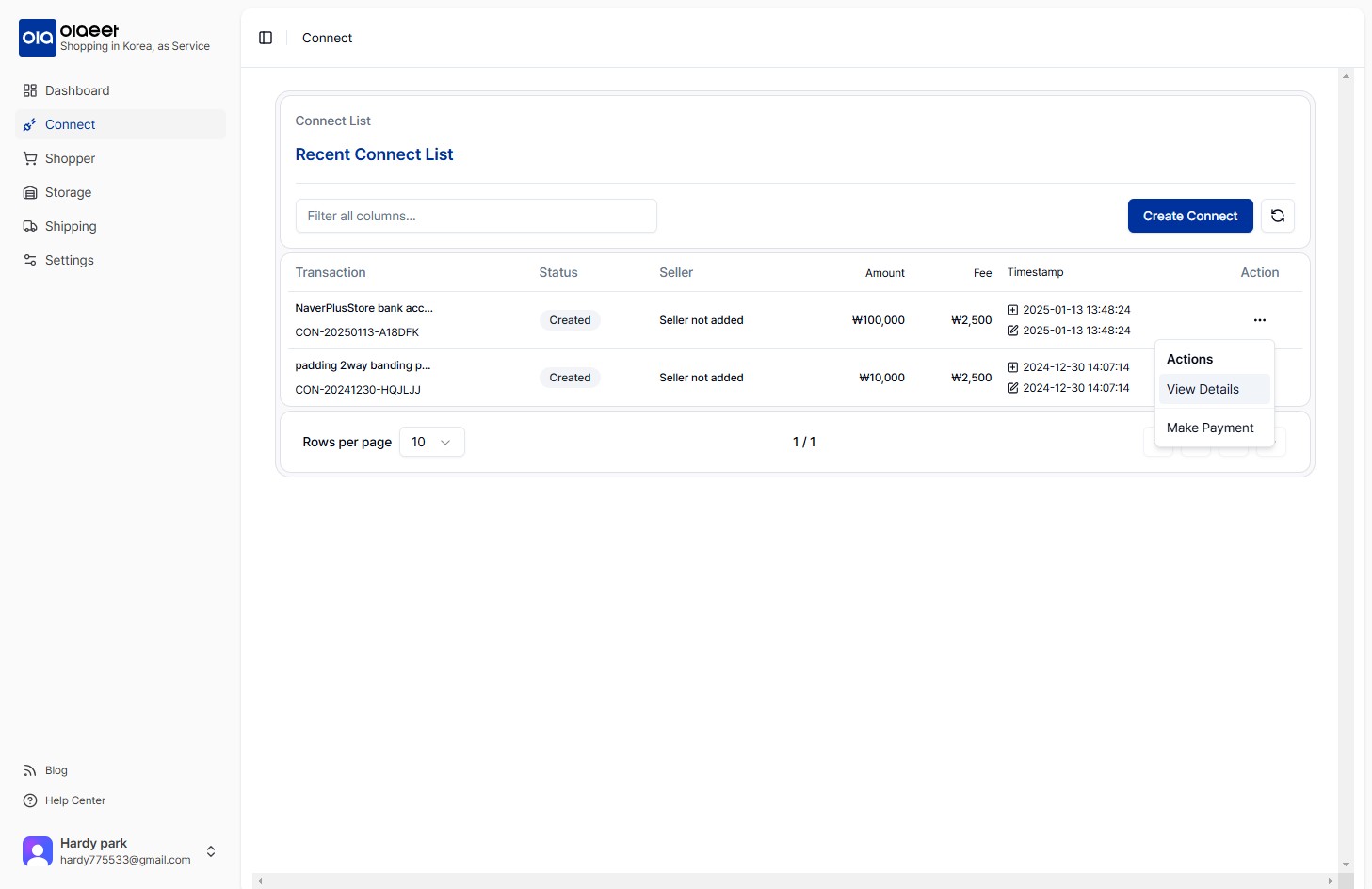
4. Once the new Connect is created, select “…” in the “Action” column on the right of the Connect list, then click “Make Payment”.
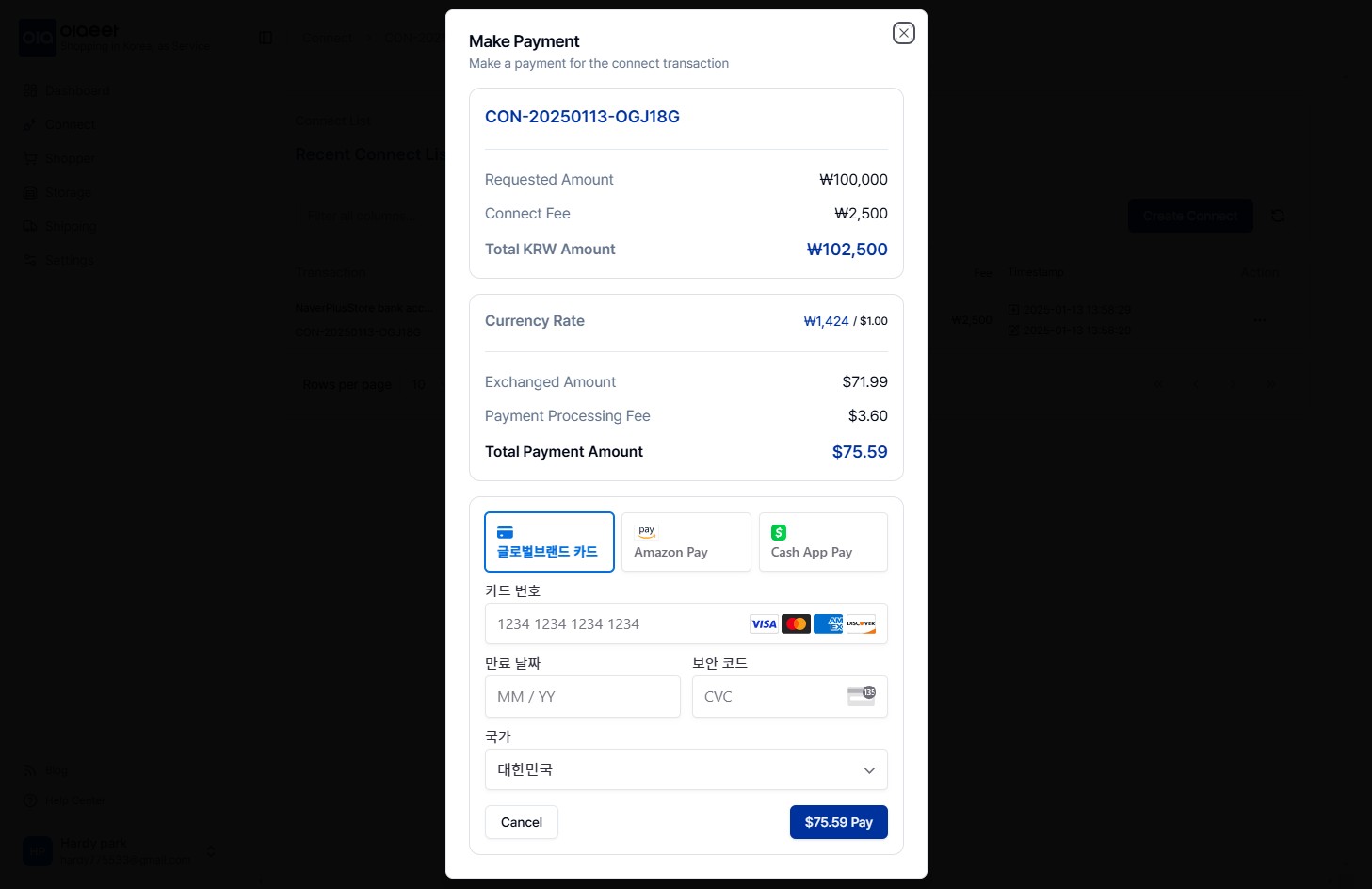
When the popup appears, check the amount to be deposited and enter your card information or pay via the Pay service to pay the amount to Olaeet.
5. Once the payment is completed, you need to enter the “Seller” information for the deposit process.
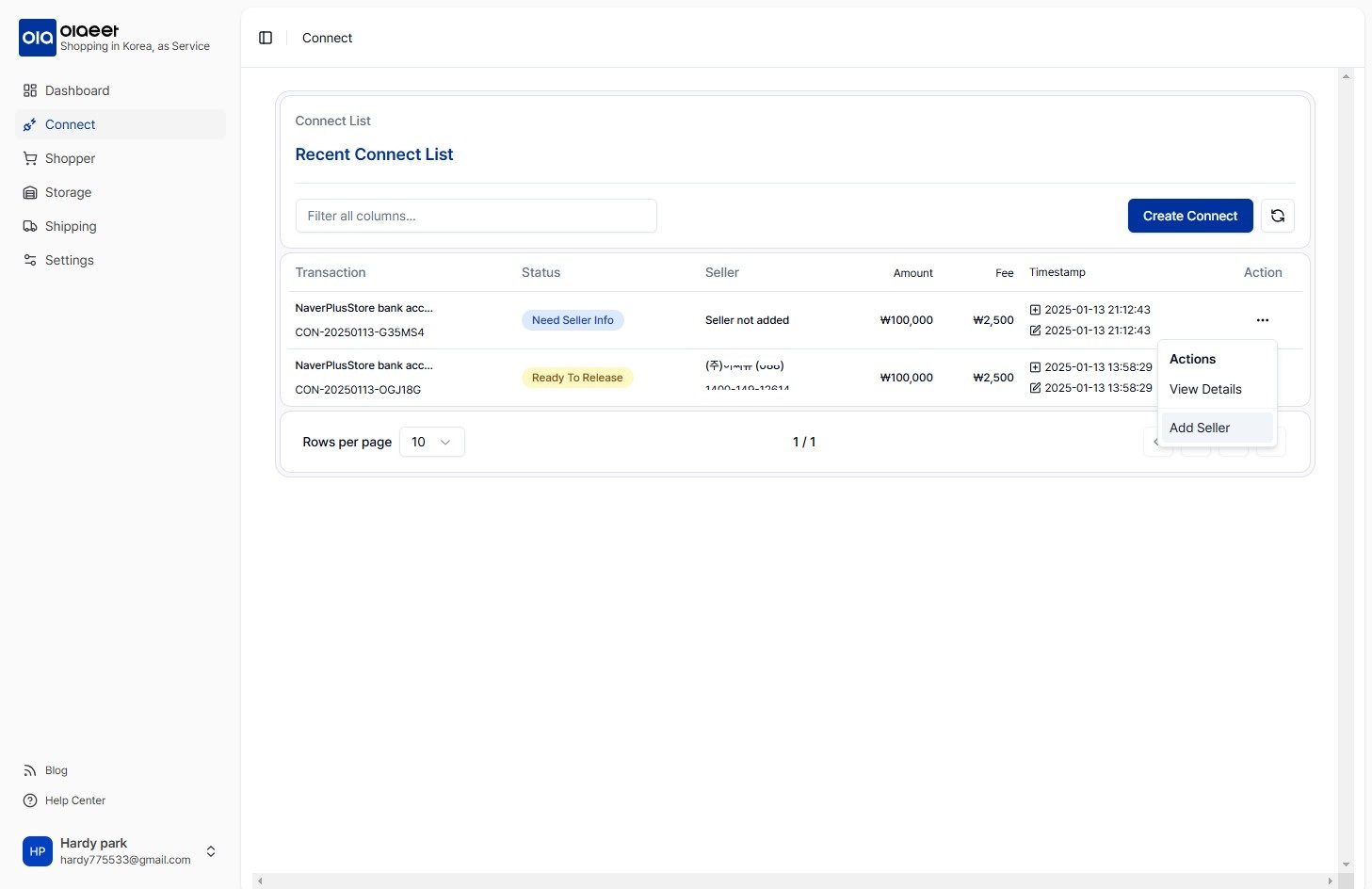
Select “…” in the “Action” column on the right of the Connect list, then click “Add Seller”.
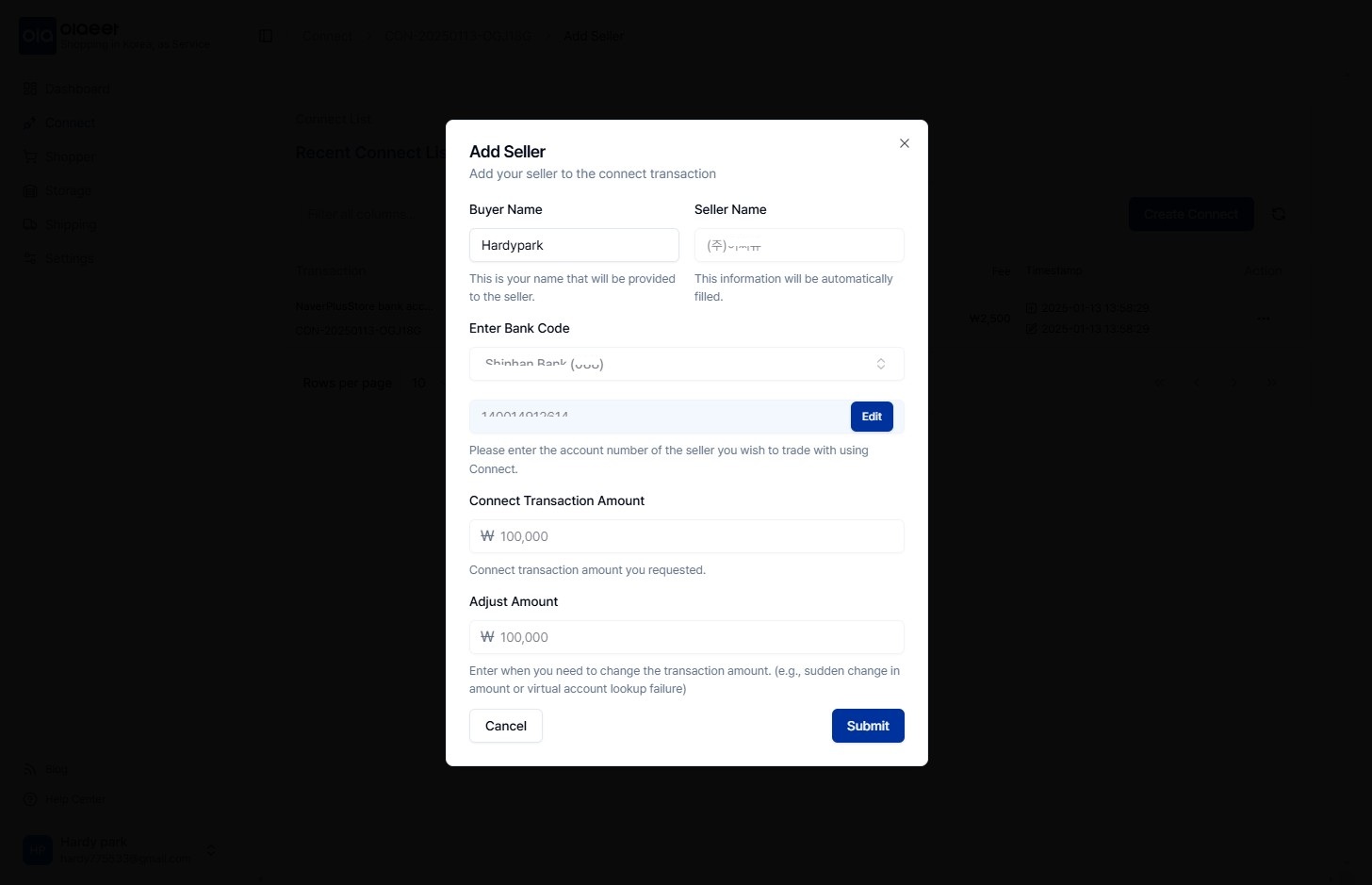
When the popup appears, enter the bank and account number to be deposited in the “Enter Bank Code” field to verify the seller’s account information, then click “Verify”.
Once verified with a valid account, the account holder’s information will be automatically registered in the “Seller Name” field at the top.
After verifying the deposit account, click “Submit” at the bottom right to complete the preparation for the payment.
6. Select “…” in the “Action” column on the right of the Connect list, then click “View Details”.
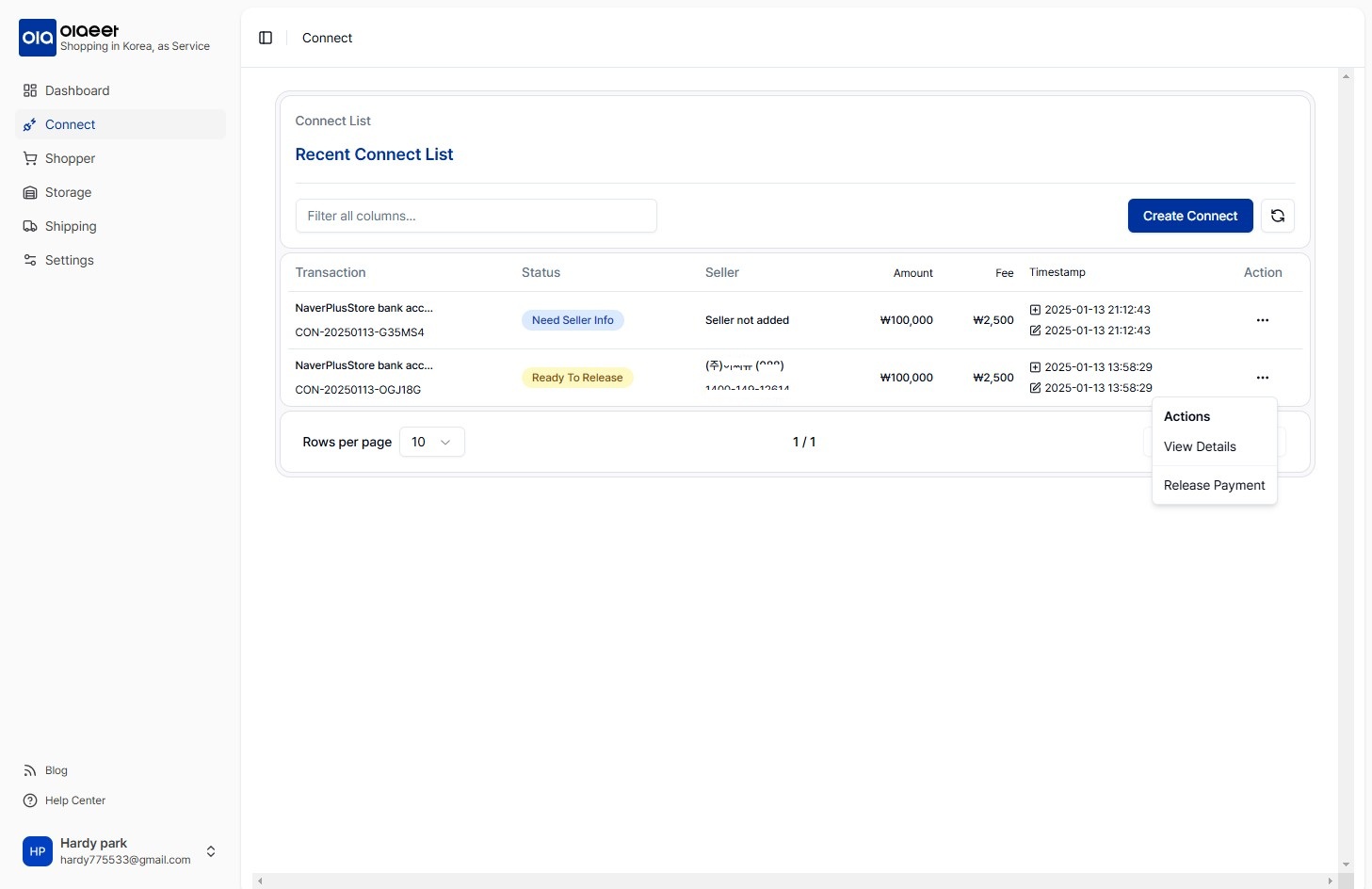
When the information window appears on the right, verify the final information, then click “Release Payment” at the bottom right.
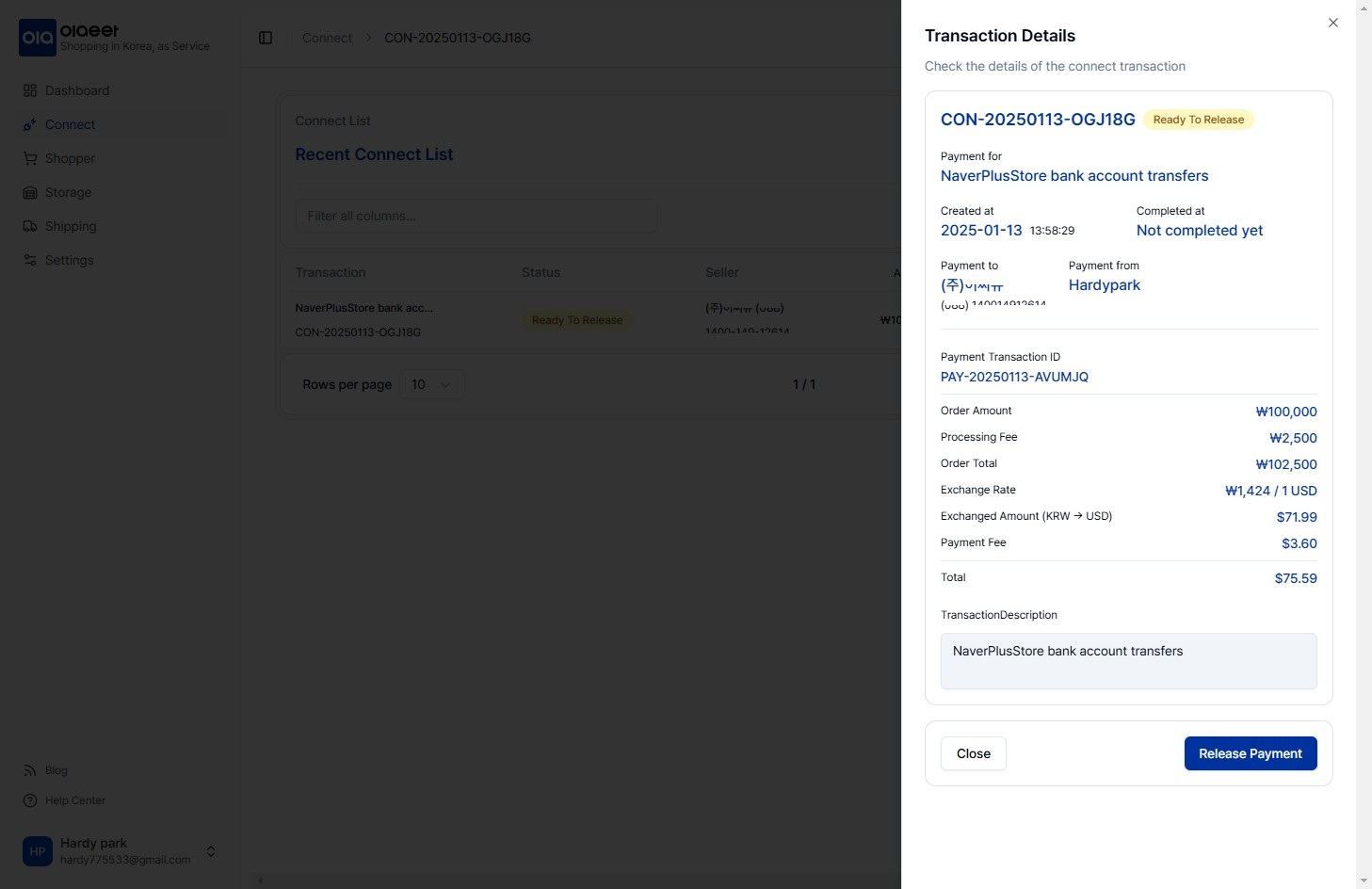
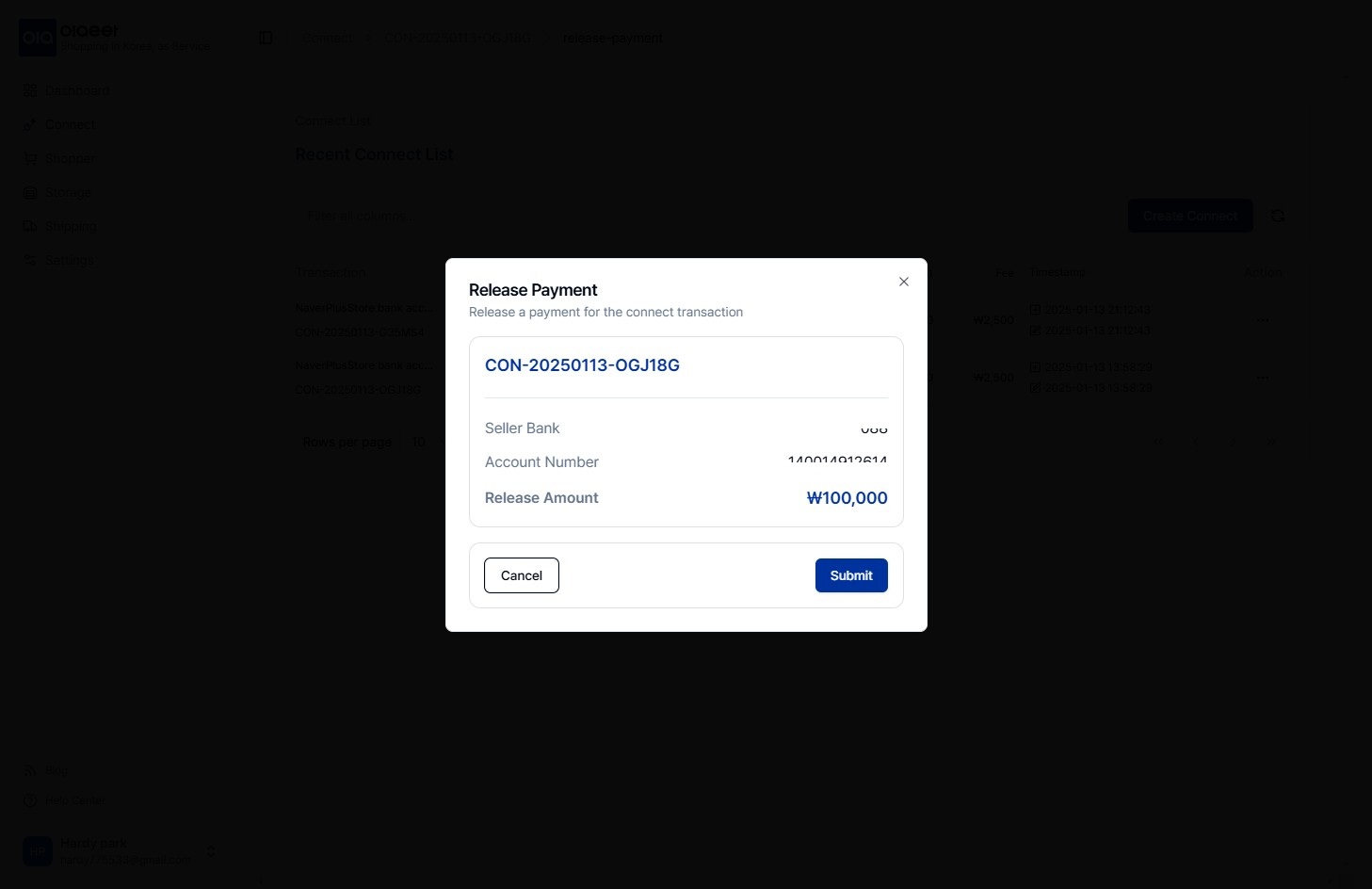
7. In the “Release Payment” popup, click “Submit” at the bottom right to complete the transfer.